
General Assist How-To Guide
How to Set Climate React on myanywAiR NEXT
Automatically change the air conditioner's operation based on temperature, humidity or feels-like conditions
Climate React allows myanywAiR NEXT to monitor room conditions and automatically apply a selected air-conditioning state when the chosen trigger threshold is reached.
Before you begin: Confirm that the myanywAiR NEXT controller is online and displaying the current room temperature and humidity. Available settings may vary depending on the connected air conditioner and selected remote type.
Set up Climate React
| 1 | Open the myanywAiR NEXT app and select the device or room on which Climate React is to be activated. |
| 2 | Swipe up from the bottom of the device screen to open the feature drawer.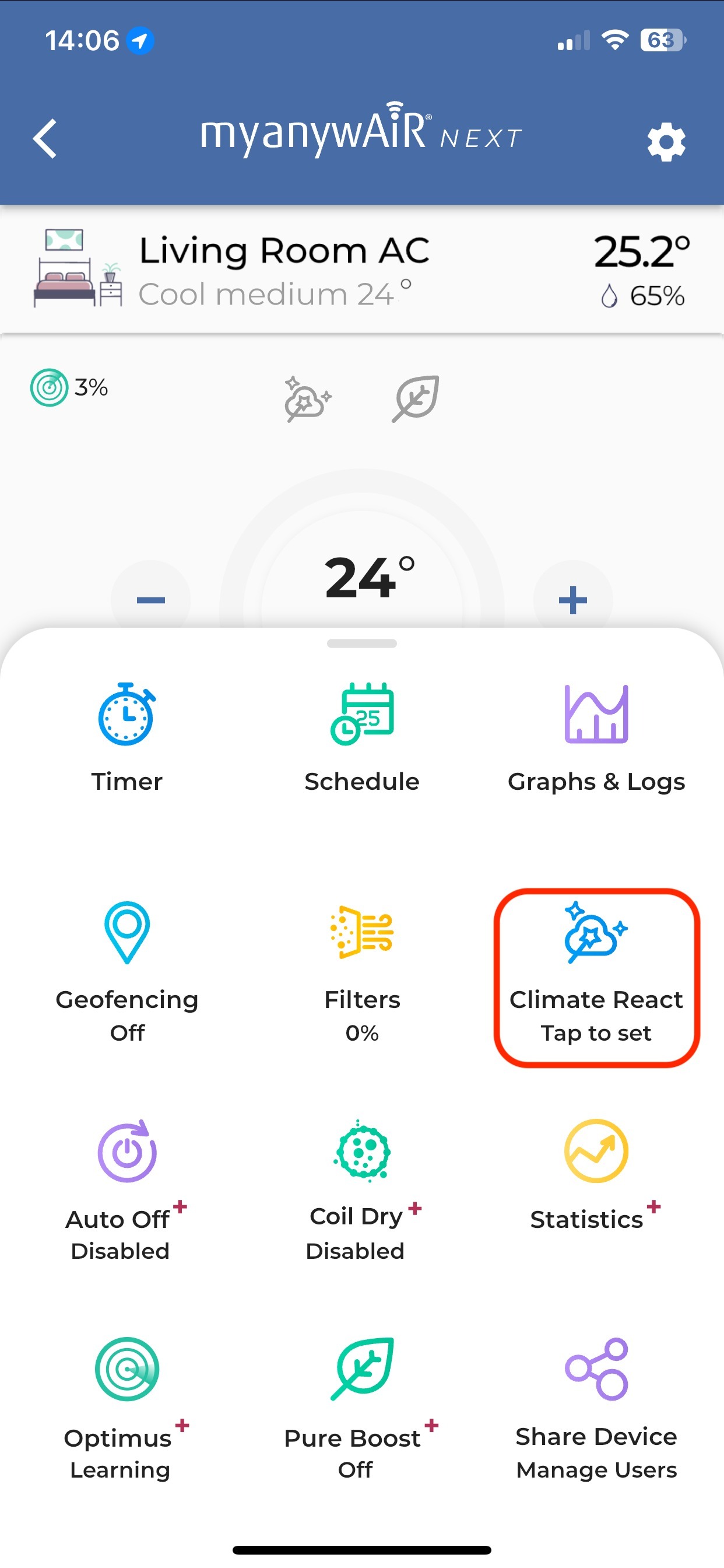 |
| 3 | Select Climate React. |
| 4 | Open the Trigger menu and select Temperature, Humidity or Feels like.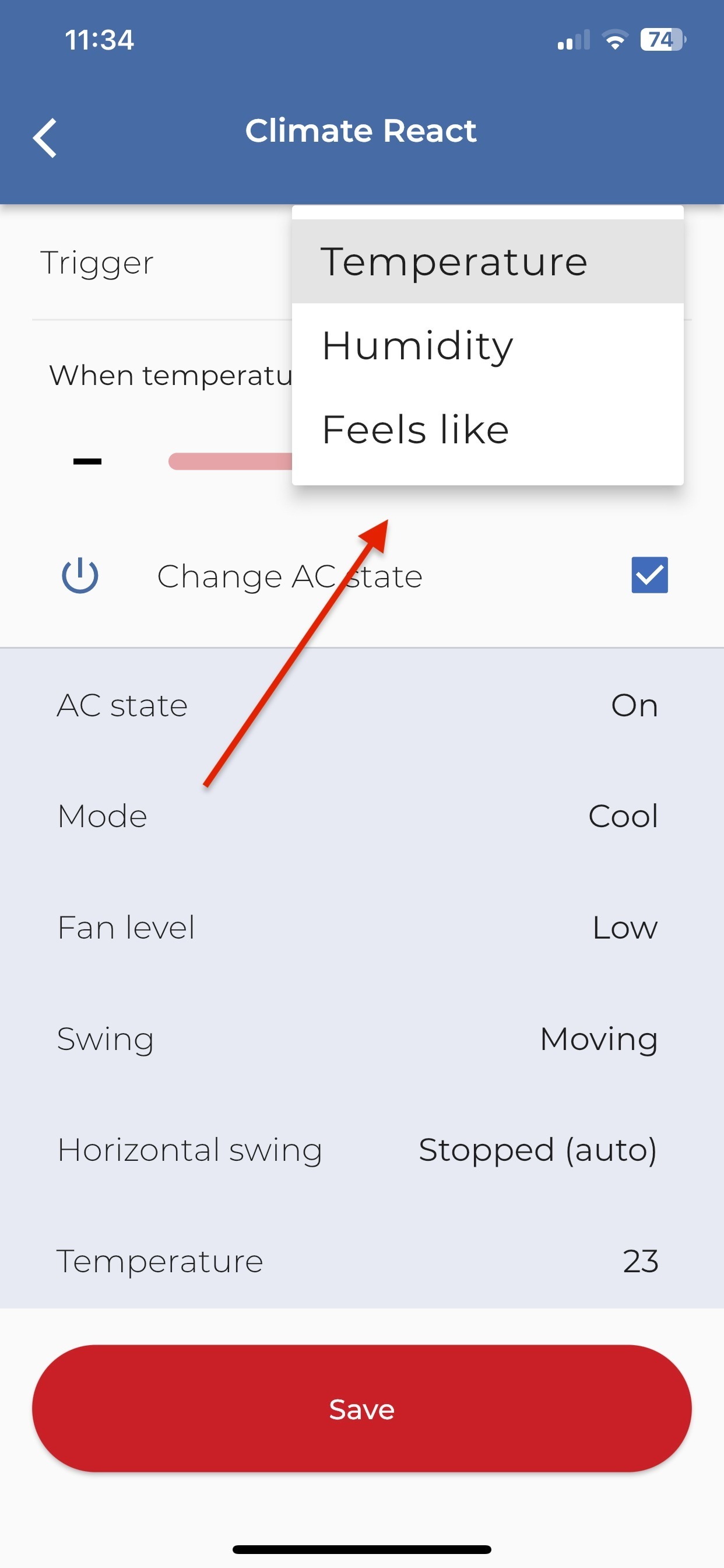 |
| 5 | Use the plus and minus controls to select the trigger threshold. |
| 6 | Enable Change AC state, then select the air-conditioning settings that are to be applied when the trigger is reached.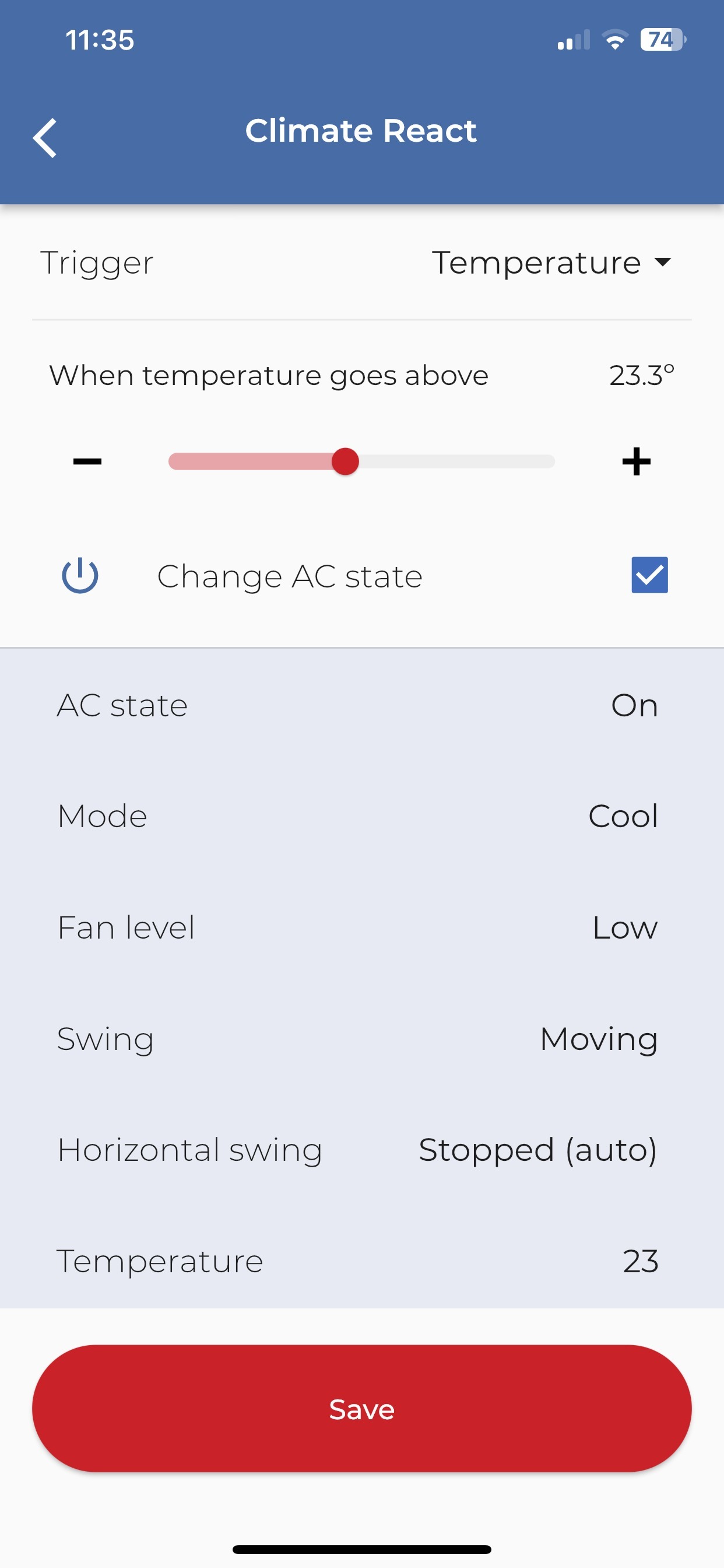 |
| 7 | Press Save to activate the Climate React rule. |
Trigger options
| Trigger | How it works |
|---|---|
| Temperature | Responds when the measured room temperature moves above or below the selected threshold. |
| Humidity | Responds when the measured relative humidity reaches the selected level. |
| Feels like | Uses the app's calculated feels-like condition, which considers the available room-condition information. |
AC state options
When Change AC stateis enabled, the Climate React screen may allow you to select:
- AC state — On or Off
- Operating mode — for example Cool, Heat, Dry, Fan or Auto
- Fan level
- Vertical swing
- Horizontal swing
- Set temperature
Important: Climate React is an automation feature. Once saved, it may turn the air conditioner on, turn it off or change its operating settings without further confirmation when the selected condition is met.
Example
Example cooling rule:
Trigger: Temperature
Condition: When temperature goes above 23.3°C
AC state: On
Mode: Cool
Fan level: Low
Set temperature: 23°C
Trigger: Temperature
Condition: When temperature goes above 23.3°C
AC state: On
Mode: Cool
Fan level: Low
Set temperature: 23°C
If Climate React does not operate
| 1 | Confirm that the controller is online and the app is receiving current room-condition data. |
| 2 | Reopen Climate React and confirm the rule was saved. |
| 3 | Check that the selected threshold has actually been crossed. |
| 4 | Confirm that the selected AC mode and functions are supported by the connected system. |
Menu names and screen appearance may vary slightly depending on the app version, mobile device, selected remote type and connected air-conditioning system.