General Assist Technical Reference
Reset anywAiR IR Blaster
How to unregister and fully reset the anywAiR IR Blaster
A full reset clears the stored Wi-Fi network from the IR Blaster so the device can be configured again.
1. Before resetting
If the IR Blaster is being transferred to a different account or user, first unregister the device from the existing account.
Important: If the same user ID will continue to use the same IR Blaster, it is not necessary to unregister the device before resetting it.
2. Reset procedure
- Ensure the IR Blaster is powered.
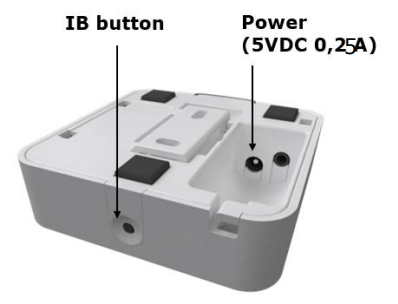
- Locate the IB button on the underside of the device.
- Press and hold the IB button for 10 to 15 seconds.
- Release the button after the reset period.
| Item | Details |
|---|---|
| Reset button | IB button |
| Reset time | Hold for 10–15 seconds |
| Power supply | 5 V DC, 0.25 A |
3. What the reset does
Holding the IB button for the reset period causes the IR Blaster to completely forget its stored Wi-Fi network.
Once the reset is complete, the device can be set up again and connected to the required Wi-Fi network.
Summary: Unregister the device first when moving it to another account, then hold the IB button for 10–15 seconds to clear the Wi-Fi settings. If the same user ID is retaining the same device, unregistering is not required.